

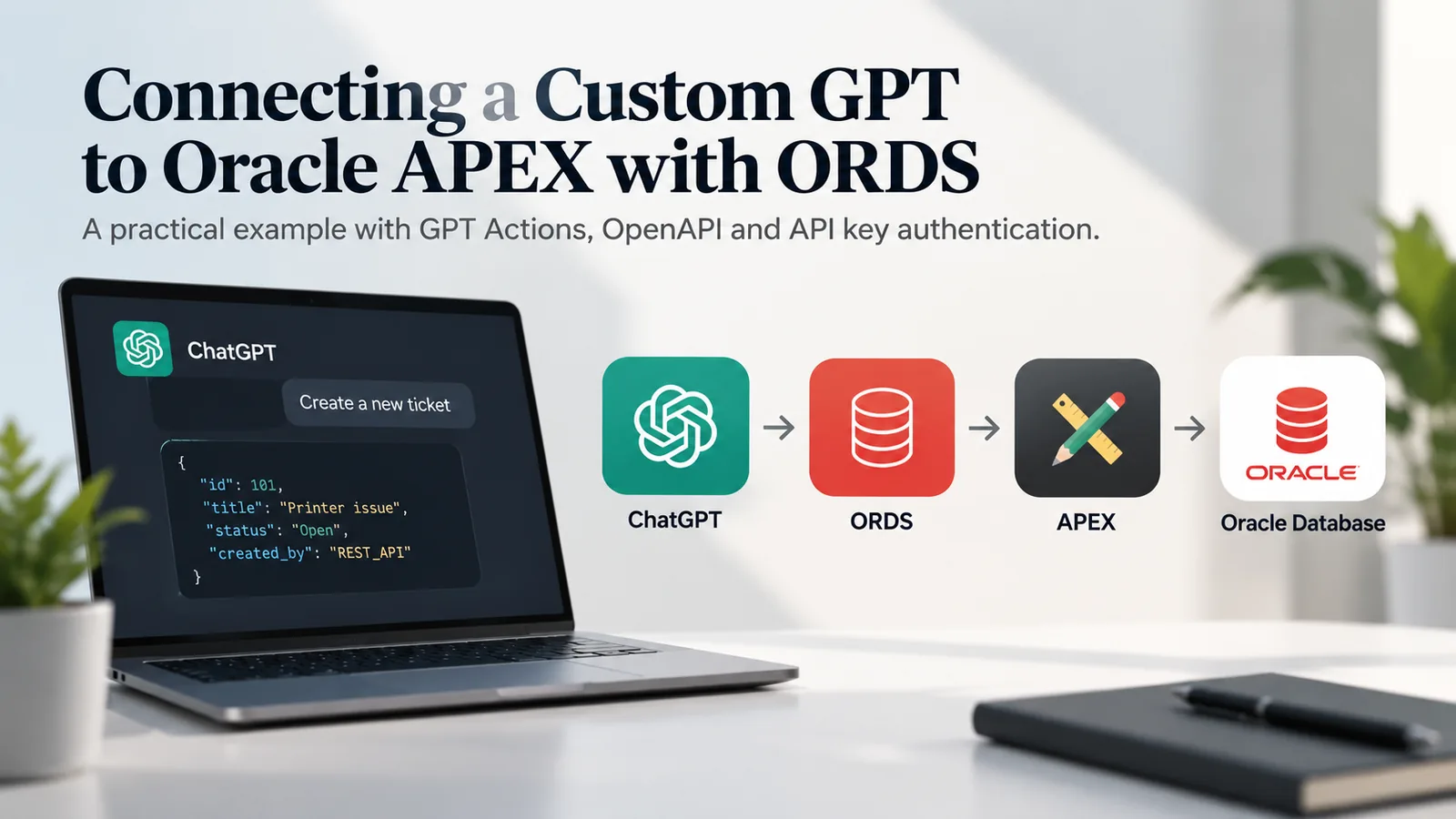
I wanted to see if I could connect ChatGPT directly to my existing Oracle APEX application.
The goal was simple. I wanted to type requests such as:
Show me all my tickets.
or:
Create a high-priority ticket for a warehouse scanner problem.
and have ChatGPT call my Oracle APEX backend directly.
In the first part of this project, I built the ticketing application in Oracle APEX and exposed it through Oracle REST Data Services (ORDS). The REST API already supported reading, creating and updating tickets, and I had tested the endpoints from Postman.
For this project, I connected that API to a Custom GPT using a GPT Action.
Custom GPT
    ↓
GPT Action
    ↓
OpenAPI
    ↓
X-API-Key
    ↓
Oracle REST Data Services
    ↓
Oracle Database
    ↓
Oracle APEX
I did not need to build any additional service between ChatGPT and ORDS.
The previous version of the API used OAuth 2.0 Client Credentials. For the GPT Action integration shown here, I used a dedicated API key in the X-API-Key header instead. This article describes that configuration.
Contents
- Starting with the ORDS-generated API definition
- Adding an API key for the GPT Action
- Creating the Custom GPT and Action
- Creating a ticket from ChatGPT
- Reading and checking ticket changes
- What I ended up with
Starting with the ORDS-generated API definition
The ticketing API already had four operations:
GET  /tickets/
GET  /tickets/{id}
POST /tickets/
PUT  /tickets/{id}
ORDS can generate an API definition from the REST module with Generate Swagger Doc. I used that output as the starting point instead of writing the whole document from scratch.
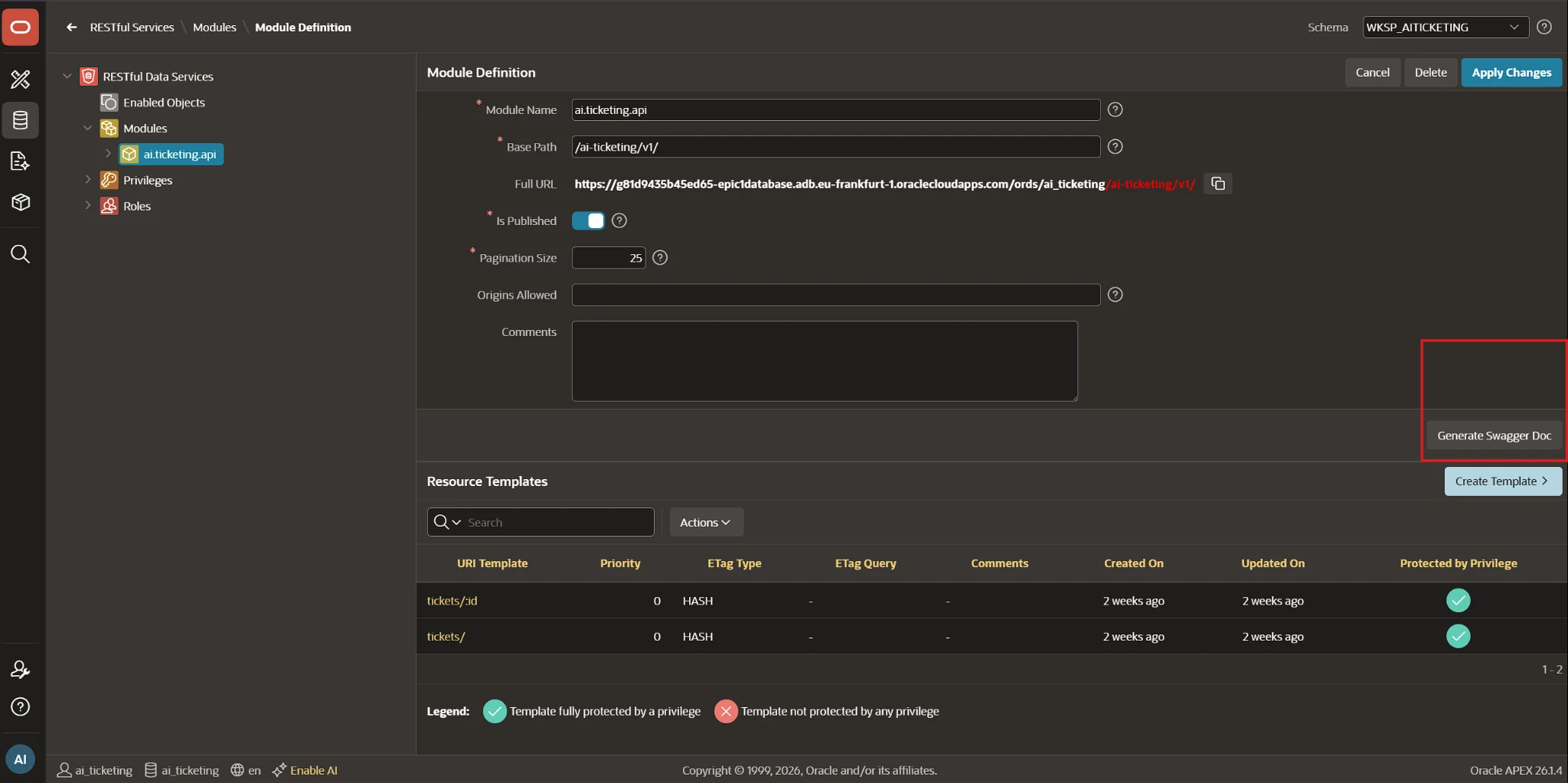
The generated document already contained the server URL, routes, HTTP methods, response fields and basic schemas. I opened it in Swagger Editor so I could inspect the definition and add the request body details that ORDS could not generate automatically.
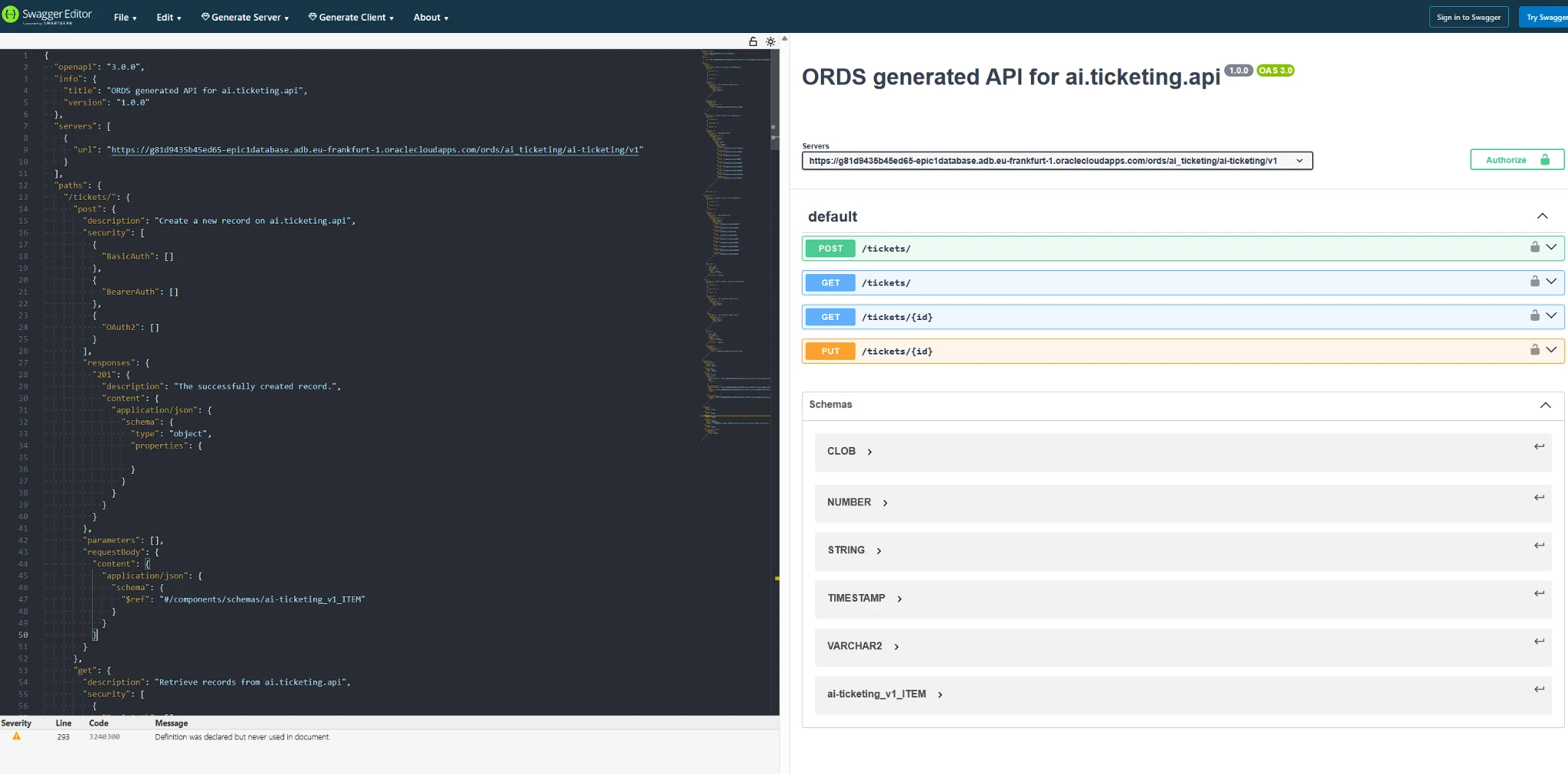
I used the generated document as the starting point and adjusted it for the GPT Action. I added the request body schema and operation IDs for the four endpoints:
listTickets
getTicket
createTicket
updateTicket
I also defined the allowed values for status and priority, so the Action knows what values the API accepts.
ORDS generated the document as OpenAPI 3.0.0. I updated it to OpenAPI 3.1.1 before importing it into the GPT Action editor.
Adding an API key for the GPT Action
For this integration, every request from the GPT Action includes a dedicated HTTP header:
X-API-Key: <API_KEY>Each ORDS handler has the header configured as an input parameter and maps it to an api_key bind variable.
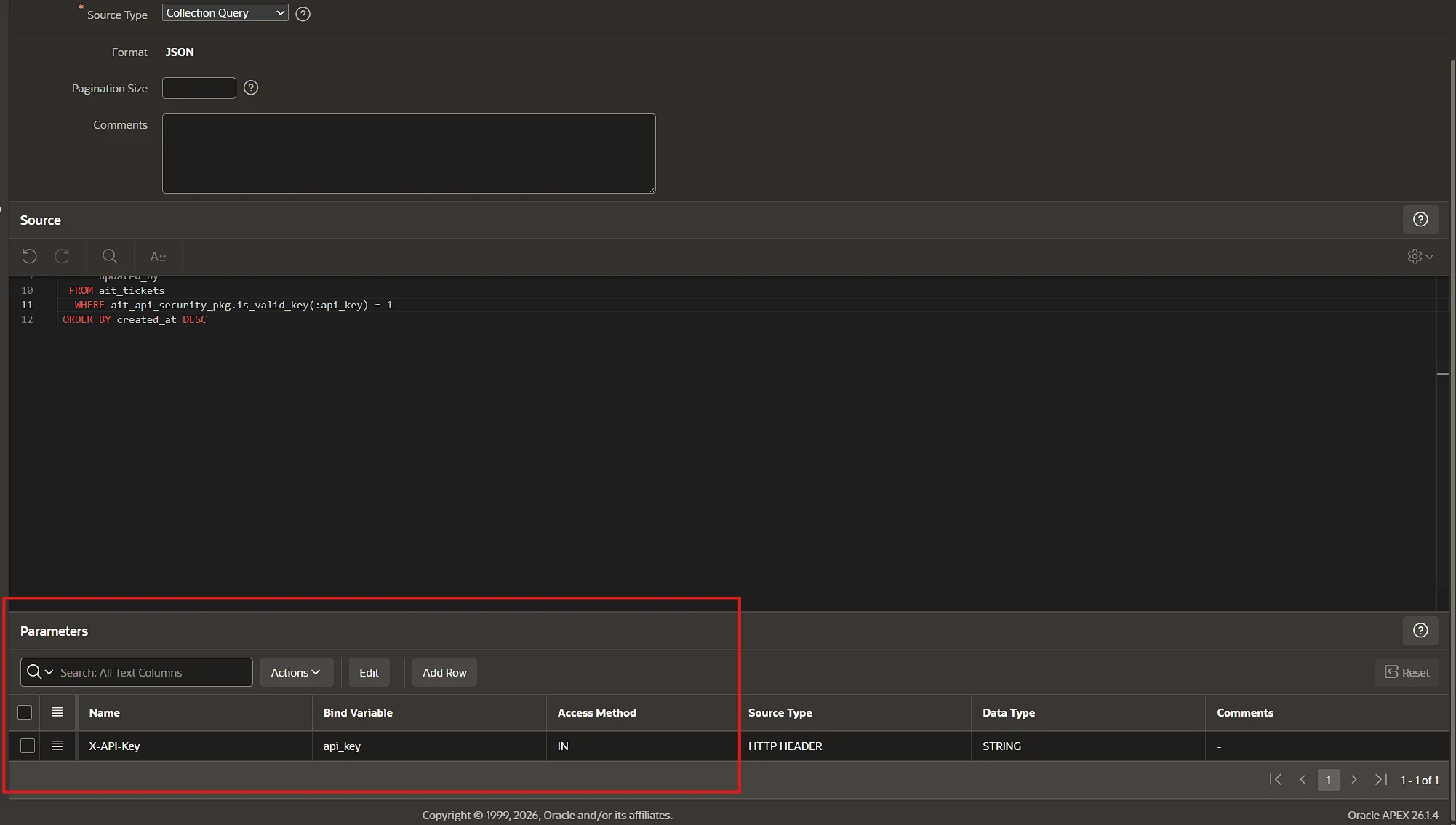
I keep only a SHA-256 hash of the key in the database. A small PL/SQL security package validates the incoming value before a handler returns ticket data or performs a write.
The OpenAPI schema only defines that the API expects an X-API-Key header. The actual key is configured separately in the GPT Action.
Creating the Custom GPT and Action
I created a Custom GPT and added a new Action in its configuration.
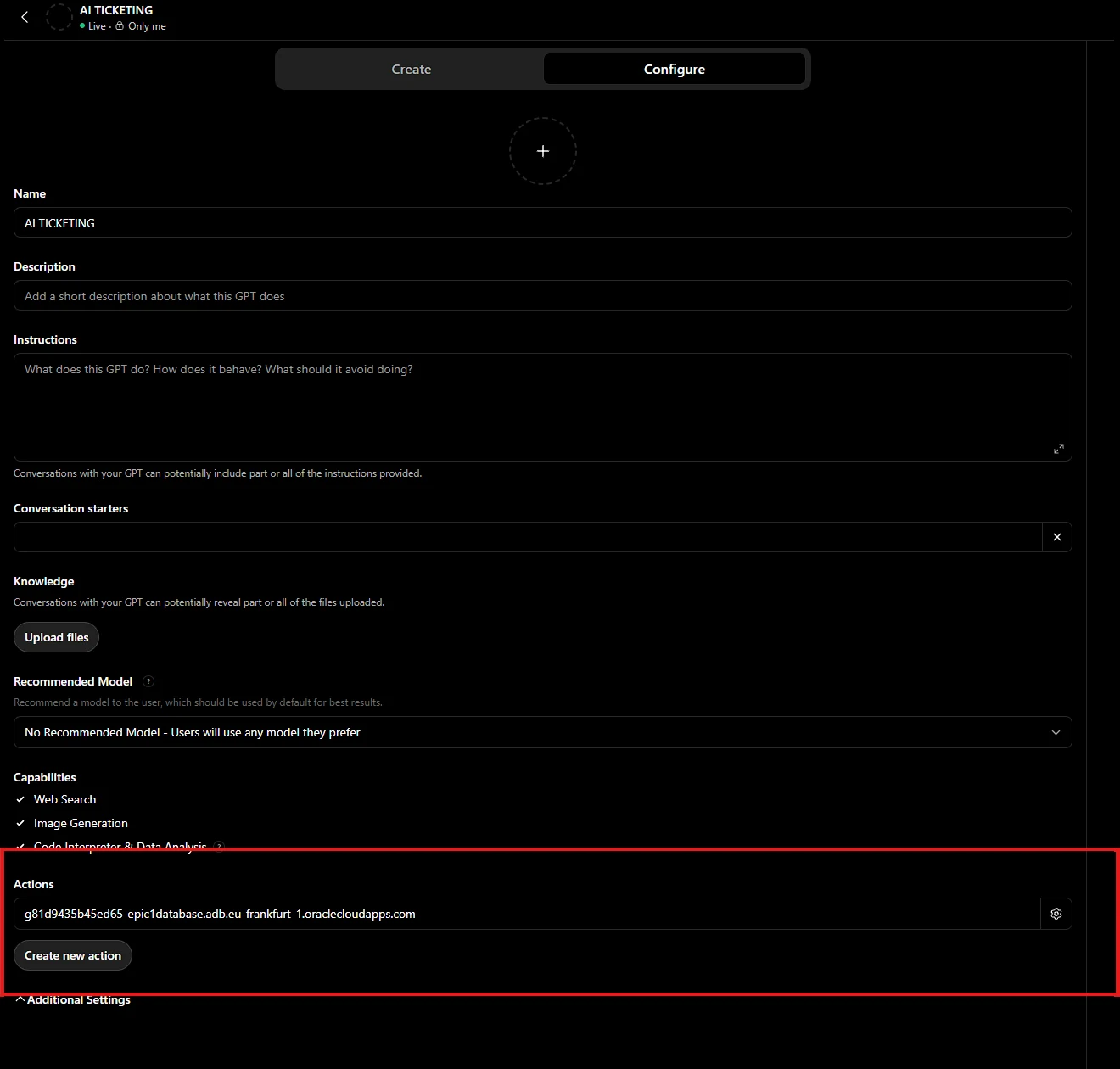
I pasted the updated OpenAPI 3.1.1 schema into the Action editor, and it detected all four operations:
listTickets
createTicket
getTicket
updateTicket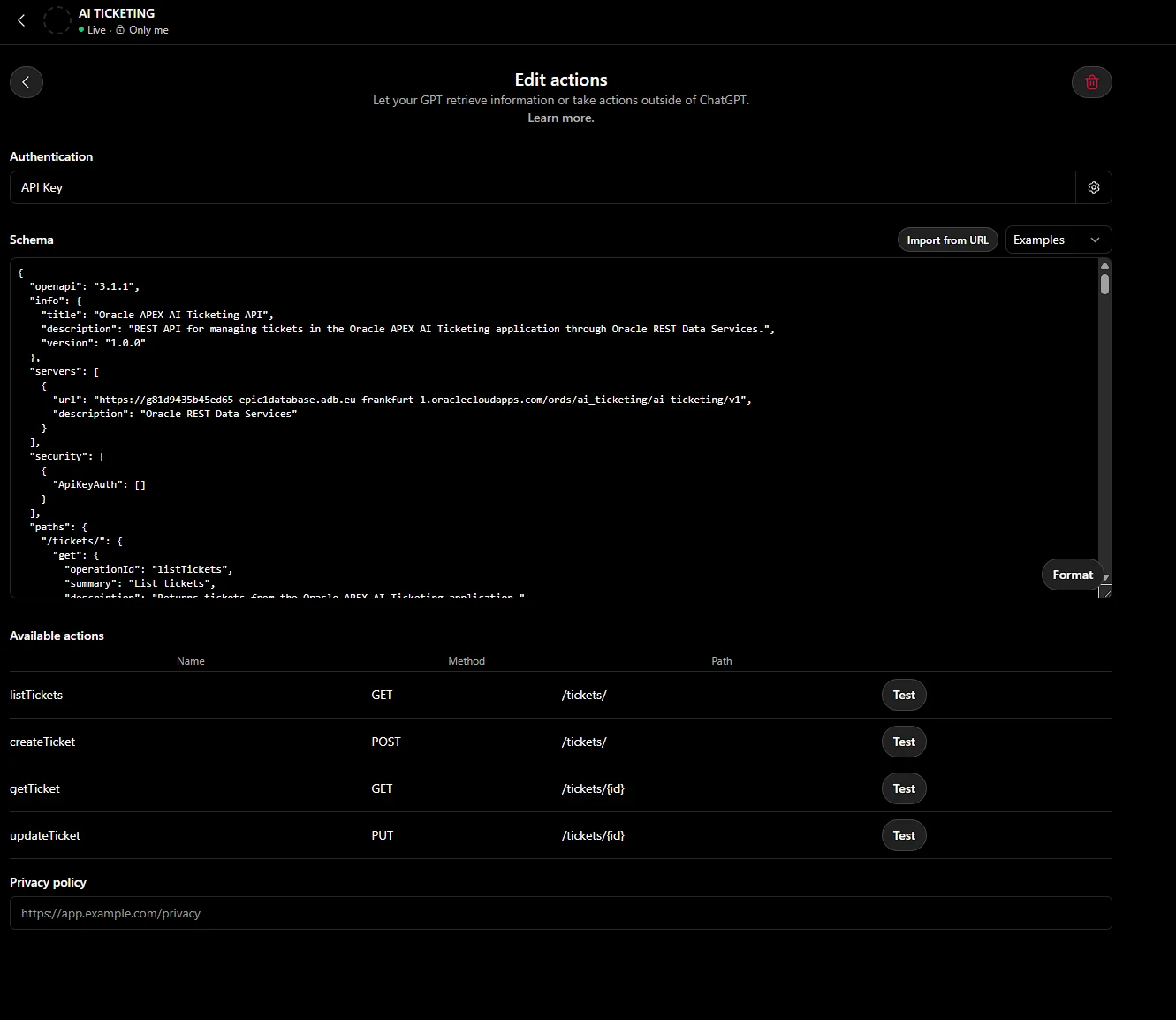
For authentication, I selected API Key, chose Custom, and set the header name to X-API-Key.
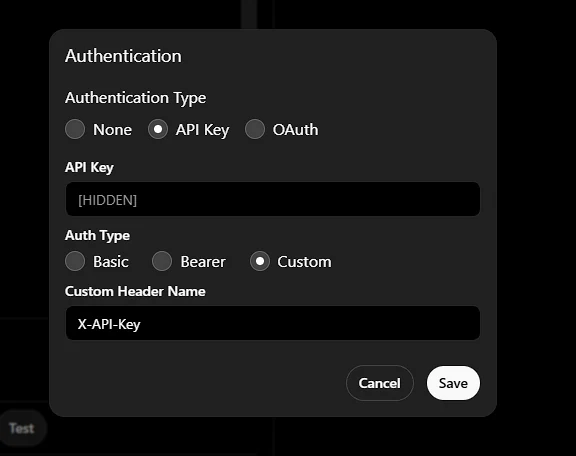
The secret itself is stored in the GPT configuration rather than in the OpenAPI schema.
I did not need to build a separate ChatGPT client. The OpenAPI schema describes the available endpoints and parameters, and the GPT Action uses that information to call the API.
Creating a ticket from ChatGPT
To test a write operation, I asked the GPT to create a new ticket:
Create a high priority ticket called "GPT Action test"
The GPT called the createTicket operation and returned the new ticket ID together with the status and priority.
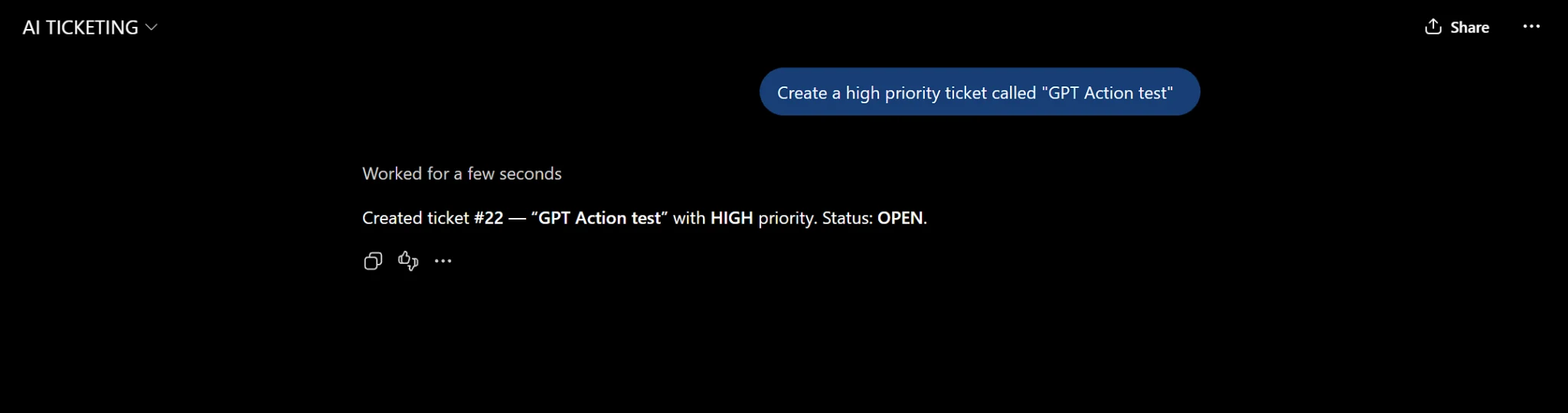
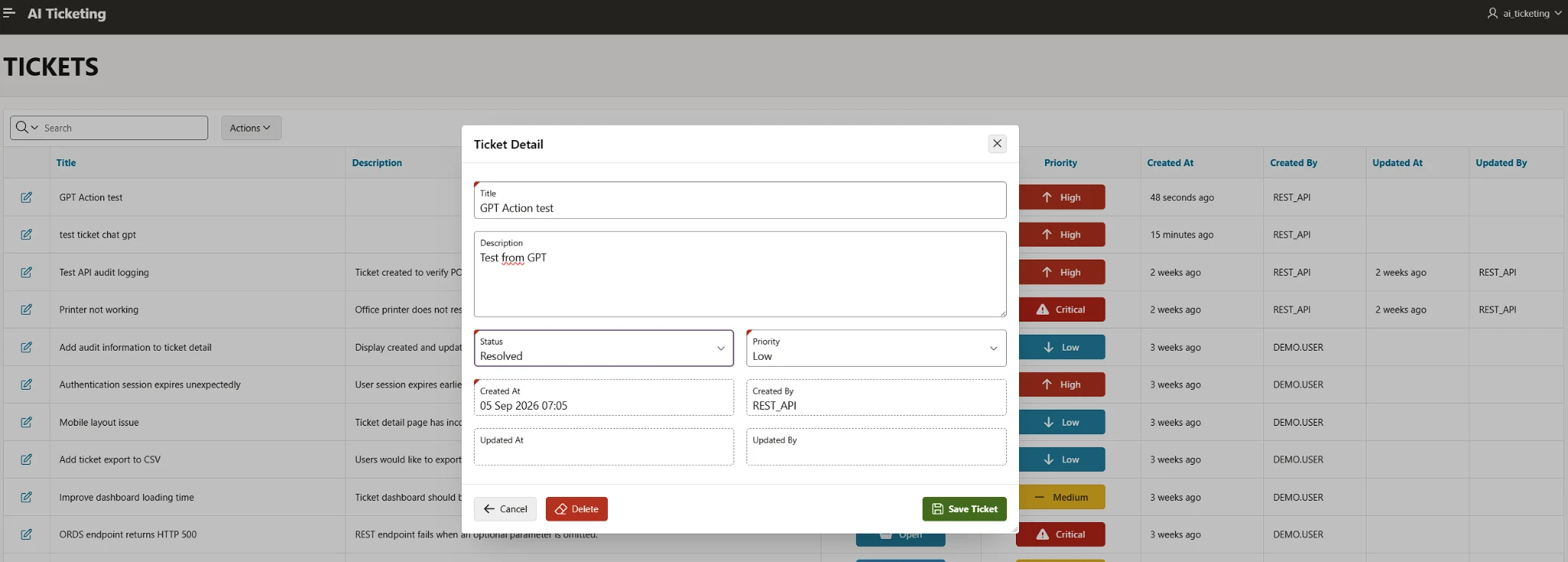
I then opened the APEX application and checked the same record there. The new ticket was visible in the ticket report and its Created By value showed REST_API, which is how the REST handler records the caller in this version.
Reading and checking ticket changes
I updated the newly created ticket in APEX and then asked the GPT to list all tickets again. The GPT returned the ticket with the new values.
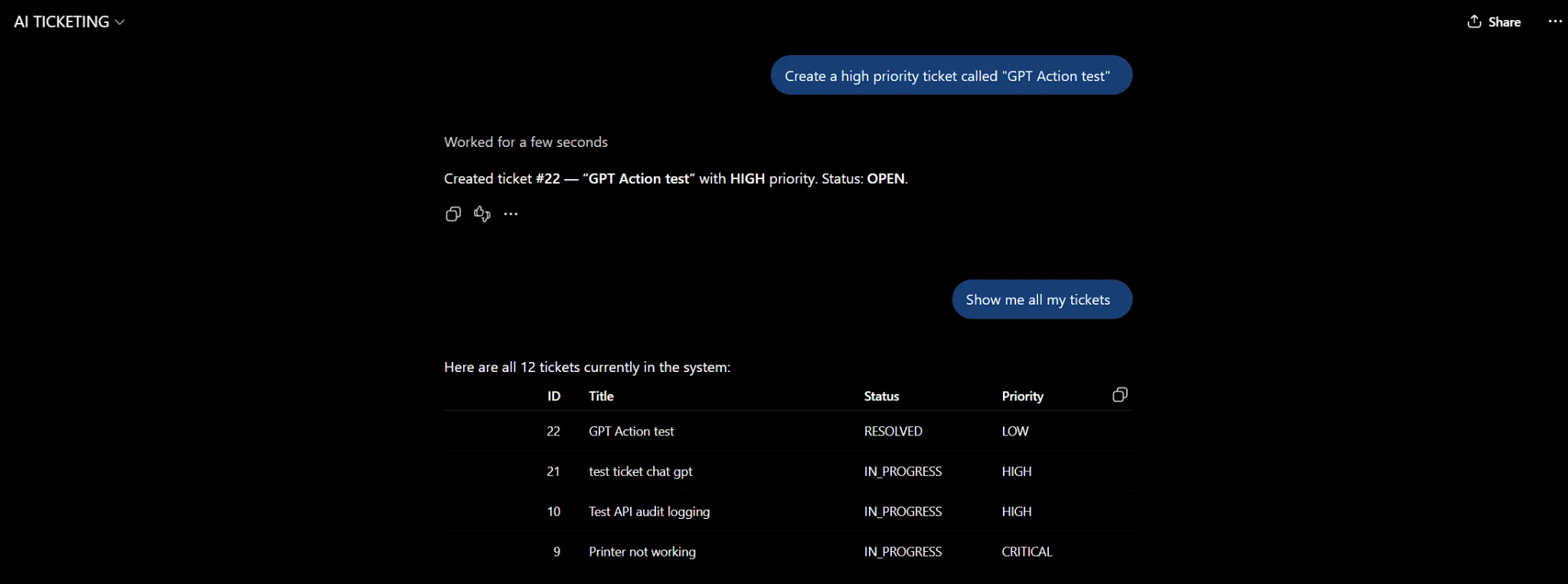
That gave me a simple way to verify the whole flow: I could create a ticket through ChatGPT, change it in APEX, and then ask the GPT to read the updated values again.
What I ended up with
By the end of this setup, the Custom GPT could use the same ORDS API that I had already built for the APEX application.
I could create a ticket from ChatGPT, see it in APEX, change it there, and then ask the GPT to read the updated values again.
The GPT did not need direct access to Oracle Database or APEX. It only needed the API definition, authentication, and the existing ORDS endpoints.
That was the goal of this part of the project: keep the existing APEX application and ORDS API, and add ChatGPT as another client.